メールの添付ファイルをTitan Driveに保存する
メールの添付ファイルをTitanドライブに直接保存できるので、最初にファイルをコンピュータにダウンロードする必要はありません。そうすれば、重要なファイルを整理してTitanメールアカウントからアクセスできるようになります。
注: Titan Driveは、Pro Plus、Premium、およびUltraプランにのみ含まれています。メールプランをアップグレード
添付ファイルを1つTitan Driveに保存
- webmail にサインインします。 Professional Email powered by Titanアドレスとパスワードを使用してください(GoDaddyのユーザー名とパスワードはここでは使用できません)。
- 添付ファイルを含むメールを開きます。
- メールメッセージの下にある添付ファイルを探します。
- 添付ファイルにカーソルを合わせ、 「ドライブに追加」を選択します。
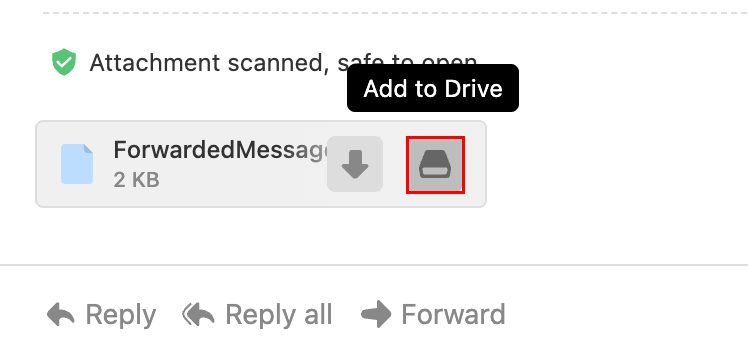
添付ファイルはTitanドライブに保存されます。
複数の添付ファイルをまとめて保存
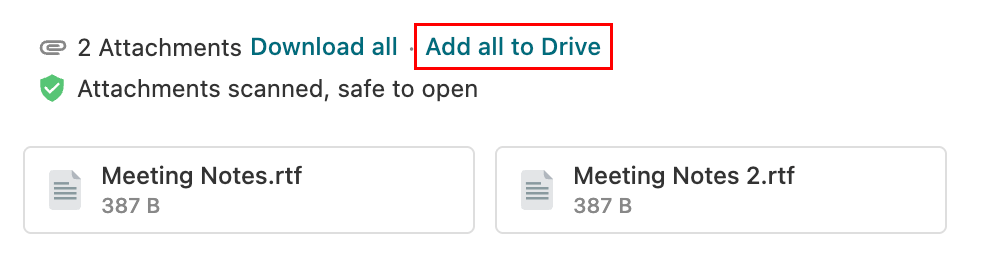
メールに複数の添付ファイルが含まれている場合は、すべてを一度に保存できます。
- webmail にサインインします。 Professional Email powered by Titanアドレスとパスワードを使用してください(GoDaddyのユーザー名とパスワードはここでは使用できません)。
- 添付ファイル付きのメールを開きます。
- [すべてドライブに追加]を選択します。
- ファイルを保存するフォルダを選択します。
- 保存を選択してください。
添付ファイルはすべて、選択したTitan Driveフォルダにアップロードされます。保存したファイルにアクセスする方法をご覧ください。
保存した添付ファイルを表示
添付ファイルがすでにTitanドライブに保存されている場合:
- webmail にサインインします。 Professional Email powered by Titanアドレスとパスワードを使用してください(GoDaddyのユーザー名とパスワードはここでは使用できません)。
- メールを開きます。
- 添付ファイルの横にあるドライブに表示アイコンを選択します。
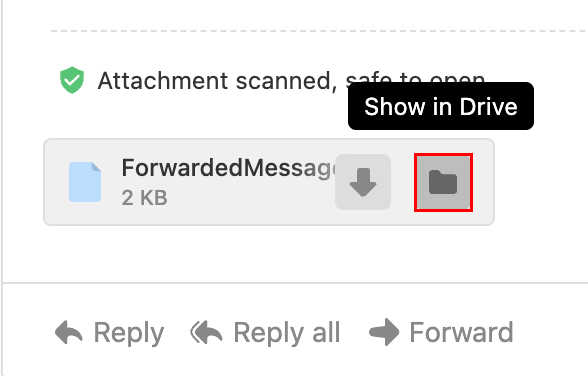
新しいブラウザタブが開き、Titan Driveのフォルダ内のファイルがハイライト表示されます。
送信した添付ファイルをTitanドライブに保存
コンピューターからアップロードした添付ファイル付きのメールを送信すると、メッセージの送信後に、ファイルをドライブに保存するようメッセージが表示されることがあります。
- webmail にサインインします。 Professional Email powered by Titanアドレスとパスワードを使用してください(GoDaddyのユーザー名とパスワードはここでは使用できません)。
- 新しいメールを作成します。
- デバイスからファイルを添付します。
- メールを送信します。
- 送信メールの添付ファイルにカーソルを合わせ、ドライブに追加アイコンを選択します。
送信後、ファイルはTitanドライブに保存されます。