GoDaddy ConversationsからInstagramプロフェッショナルアカウントの接続を解除する
GoDaddy ConversationsからInstagramプロフェッショナルアカウントの接続を解除すると、Conversations統合受信トレイにInstagramメッセージやコメントが届かなくなります。 InstagramのメッセージとコメントはすべてConversationsの受信箱とアーカイブから削除され、スター付きのInstagramのメッセージとコメントも削除されます。
InstagramはConversationsにいつでも再接続できます。削除すると、メッセージとコメントがConversationsの受信箱に再度表示されます。
Note: The GoDaddy mobile app and connecting your social media accounts aren't available with free Conversations plans.
- GoDaddyモバイルアプリにサインインします。
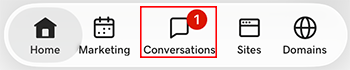
- 画面の下部にある[会話]をタップすると、アーカイブされていないすべての会話のリストが表示されます。
- 右上のタップ
 [その他]をタップし、 [設定]をタップします。
- Tap Instagram. You may be asked to sign in to your GoDaddy account.
- Expand Instagram, and then tap your Instagram account.
- At the bottom of the page, select Disconnect Channel.
- Instagramの接続を解除することを確認するには、 [はい、接続を解除します]を選択します。
- GoDaddyモバイルアプリにサインインします。
- 画面の下部にある[会話]をタップすると、アーカイブされていないすべての会話のリストが表示されます。
- 右上のタップ
 設定
- Tap Instagram. You may be asked to sign in to your GoDaddy account.
- Expand Instagram, and then tap your Instagram account.
- At the bottom of the page, select Disconnect Channel.
- Instagramの接続を解除することを確認するには、 [はい、接続を解除します]を選択します。
- Webブラウザで、GoDaddyの商品ページのに移動します。
スタンドアロンバージョンのConversationsを使用している場合は、 [Conversations統合受信トレイ]を展開します。 Conversationsプランの右側にあるWeb受信箱を選択してください。
または
Websites + Marketingプランをご利用の場合は、 Websites + Marketingまでスクロールして、サイトの横にある「管理」を選択します。左側のメニューで[Conversations]を展開します。
- 「設定」を選択してください。
- チャンネルを選択
- Expand Instagram, and then select your Instagram account.
- At the bottom of the page, select Disconnect Channel.
- Instagramの接続を解除することを確認するには、 [はい、接続を解除します]を選択します。