チャット+ Conversationsの通知を管理
When customers send a message through your Websites + Marketing site's chat widget, you'll also get an email notification. You can turn these notifications off or change the email address they're sent to.
Note: The GoDaddy mobile app is not available with free Conversations plans.
Required: You need a Websites + Marketing plan to use Chat + Conversations. If you're subscribed to Conversations standalone you won't have this feature.
- GoDaddyモバイルアプリにサインインします。
- At the bottom of the screen, tap Conversations to see a list of all your unarchived conversations.

- In the top-right corner, tap
 more, and then tap Settings.
- Next to Email Notifications, to receive chat messages through email, turn the toggle on (shows green). To stop receiving chat messages through email, turn the toggle off (shows white).
- GoDaddyアカウントに関連付けられているメインのメールアドレスにメール通知が届きます。変更するには、この記事の「 Web 」タブで説明されている手順に従ってください。
- To receive notifications in the GoDaddy mobile app whenever you get new messages, select Manage in Device Settings.
- GoDaddy Conversationsのアプリ内通知を許可します。
- GoDaddyモバイルアプリにサインインします。
- At the bottom of the screen, tap Conversations to see a list of all your unarchived conversations.
- In the top-right corner, tap
 settings.
- Next to Email Notifications, to receive chat messages through email, turn the toggle on (shows green). To stop receiving chat messages through email, turn the toggle off (shows white).
- GoDaddyアカウントに関連付けられているメインのメールアドレスにメール通知が届きます。変更するには、この記事の「 Web 」タブで説明されている手順に従ってください。
- To receive notifications in the GoDaddy mobile app whenever you get new messages, select Manage in Device Settings.
- GoDaddy Conversationsのアプリ内通知を許可します。
- GoDaddyの商品ページに移動します。
- 下にスクロールして「Websites + Marketing」を展開し、サイトの横にある「管理」を選択します。
- 左側のメニューで[Conversations]を展開し、 [設定]を選択します。
- [通知]を選択します。
- チャットメッセージをメールで受信するには、
 オンに切り替えます(緑で表示)。メールによるチャットメッセージの受信を停止するには、トグルをオフにします(白く表示されます)。
- GoDaddyアカウントに関連付けられているメインのメールアドレスにメール通知が届きます。変更するには、ボックスに新しいメールアドレスを入力します。
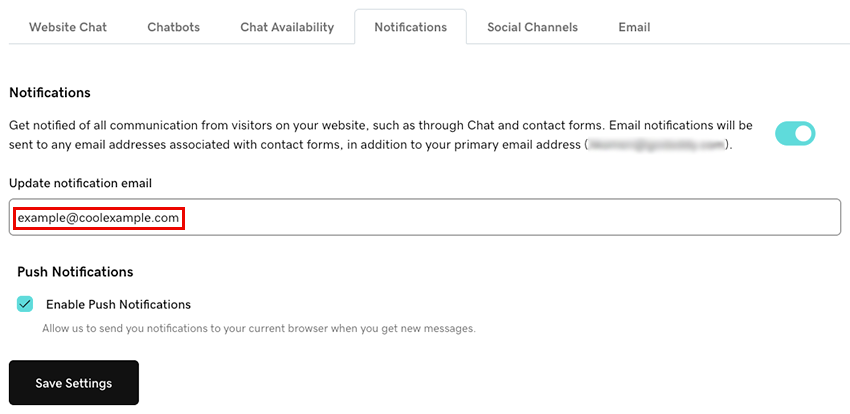
- Conversationsから新しいメッセージを受信したときにブラウザで通知を受け取るには、「プッシュ通知を有効にする」チェックボックスを選択します。これにより、現在のブラウザに通知が送信されます。
- 「設定の保存」を選択して変更を保存します。
通知の設定で問題が発生した場合は、記事「チャット+ Conversationsの通知のトラブルシューティング」を参照してください。