Professional Email powered by Titanでメールをアーカイブまたはアーカイブ解除する
受信トレイがすっきりするようにするには、メッセージをアーカイブフォルダに移動します。アーカイブフォルダ内のメッセージが削除されることはありません。
Select a tab based on whether you're on webmail on desktop or the mobile app.
メールをアーカイブする
- webmail にサインインします。 Professional Email powered by Titanアドレスとパスワードを使用してください(GoDaddyのユーザー名とパスワードはここでは使用できません)。
- 受信トレイでメールを選択します。
- メールの上にあるアーカイブアイコンを選択します。
メールはアーカイブフォルダに移動されます。削除したり、受信トレイに戻したりしない限り、フォルダ内に無期限に残ります。
メールをアーカイブ解除する
- webmail にサインインします。 Professional Email powered by Titanアドレスとパスワードを使用してください(GoDaddyのユーザー名とパスワードはここでは使用できません)。
- 左端の[アーカイブ]フォルダを選択します。
- メールを選択します。
- メッセージの上にある[フォルダに移動] 、 [受信トレイ]の順に選択します。 [フォルダに移動]が表示されない場合は、
 [その他の操作] 、 [フォルダに移動]の順にクリックします。
![[受信トレイ]ボタンが強調表示された[フォルダに移動]オプション](https://images.ctfassets.net/7y9uzj0z4srt/2mIZhjGFlhGb5Dy4z1CgYH/610ea6db29b1d78a7074e9d62acee13a/image-article-42651-01.png)
メールが受信トレイに移動されたことを確認するメッセージが表示されます。
メールをアーカイブする
- Titanアプリを開きます。
- In your inbox, tap an email.
- At the top of the email, tap
 Archive.
You'll see a confirmation that the conversation was moved to the archive.
メールをアーカイブ解除する
- Open the Titan mobile app.
- In the upper-right corner, tap the
 icon for the menu. menu or swipe left, and then tap Settings.
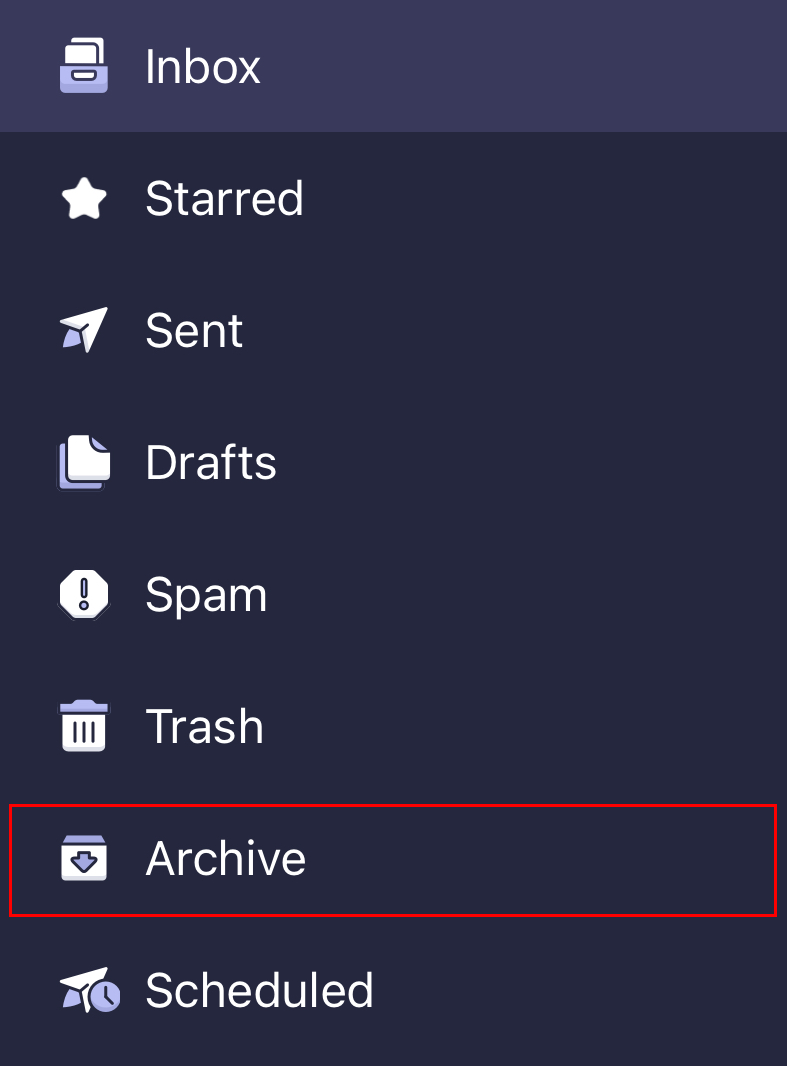
 - Tap Archive.
- In the upper-right corner, tap
 More actions, and then Move to folder.
 - Tap Inbox. You'll see a confirmation that the message was moved to your inbox.
関連情報
- 特定の日付より古いメールをアーカイブするには、高度な検索を使用してメッセージをフィルタリングします。
- メールのラベルを使用して受信トレイを整理する
- 受信メールを別のメールアドレスに転送する