Professional Email powered by Titanのメールフォルダを作成
フォルダは、受信トレイやメッセージを整理するのに役立ちます。 Professional Email powered by TitanのWebメールでは、フォルダとサブフォルダの両方を作成できます。
Select a tab based on whether you're on webmail on desktop or the mobile app.
フォルダを作成
- webmail にサインインします。 Professional Email powered by Titanアドレスとパスワードを使用してください(GoDaddyのユーザー名とパスワードはここでは使用できません)。
- 左端のフォルダリストで、 [+フォルダを追加]を選択します。
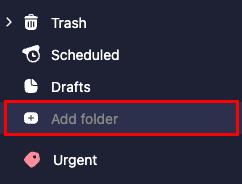
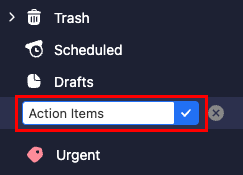
- フォルダ名を入力し、 Enterキーを選択してください。フォルダが作成され、フォルダリストの一番下に追加されます。
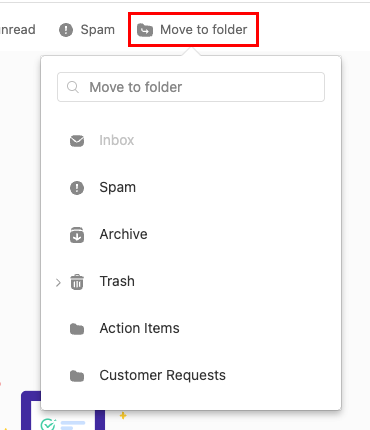
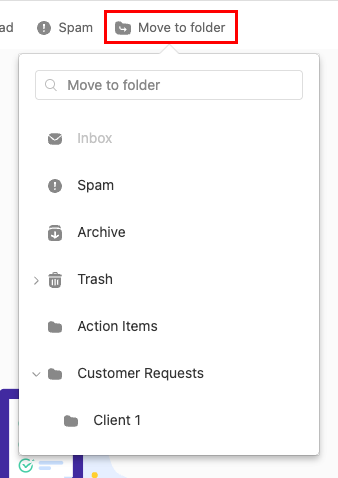
メッセージをフォルダに移動するには、各メッセージの横にあるチェックボックスをオンにして、 [フォルダに移動]を選択します。メッセージを移動するフォルダを選択します。
サブフォルダを作成
- webmail にサインインします。 Professional Email powered by Titanアドレスとパスワードを使用してください(GoDaddyのユーザー名とパスワードはここでは使用できません)。
- 目的のプライマリフォルダにカーソルを合わせて、
 [その他の操作]をクリックし、 [サブフォルダを作成]をクリックします。
![[その他の操作]メニューが開き、[サブフォルダを作成]ボタンがハイライト表示されます。](https://images.ctfassets.net/7y9uzj0z4srt/7dovj0E8fVeorRCTeN3WV4/ccf721065ef1b77e46e79d4859cb9f55/image-article-42659-03.png)
- サブフォルダの名前を入力し、 Enterキーを選択します。サブフォルダが作成され、元のフォルダの下にネストされます。
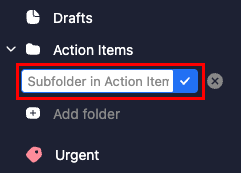
メッセージをサブフォルダに移動するには、各メッセージの横にあるチェックボックスをオンにして、 [フォルダに移動]を選択します。メインフォルダの隣で、 矢印、次にメッセージを移動するサブフォルダ。
Note: You can only create folders on the Titan mobile app. To create subfolders, follow the steps in the Webmail tab.
フォルダを作成
- Titanアプリを開きます。
- 右上にある
 メニューまたは左にスワイプして、設定アイコンをタップします。
 - Under FOLDERS, tap Add folder. The Add Folder window will open.
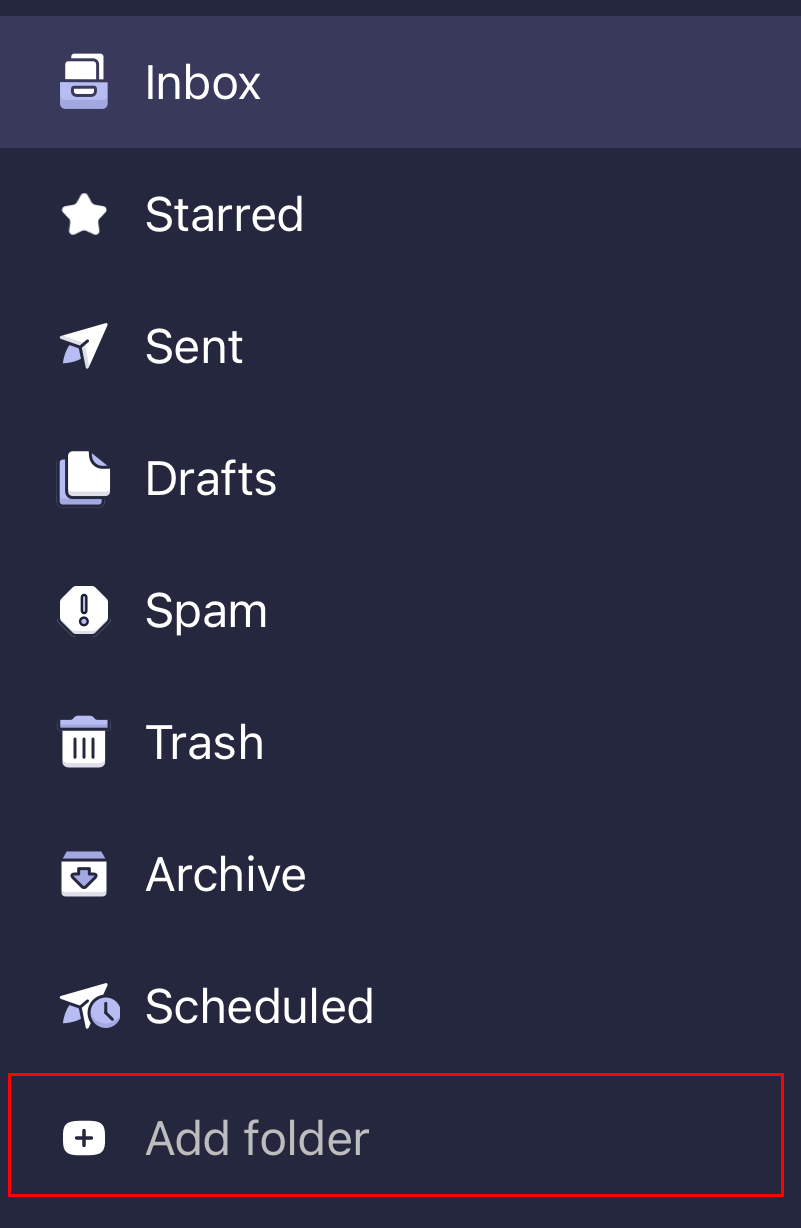
- Enter a folder name, and then tap Done. You'll see a confirmation that the folder was created, and the folder will open.