Make a logo using AI in Content Creator
Use artificial intelligence to create a brand-new logo for your business in seconds with Content Creator's Logo Generator. Then use the Studio canvas to fine-tune the logo to your liking, just as you would with any other Content Creator project.
Note: Logo Generator is free to use for all Content Creator subscribers. If you have a Websites + Marketing plan, Content Creator is included at no extra cost.
- Sign in to your Content Creator app.
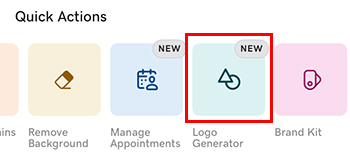
- Under Quick Actions, tap Logo Generator.
- From the options that appear, choose 1-3 words that describe your business personality. This will help the AI choose fonts and colors that match your style.
- Tap
 Next.
Next. - Our AI engine will use your business information and the information you’ve provided to generate 12 different logos. These will display in the Content Creator canvas.
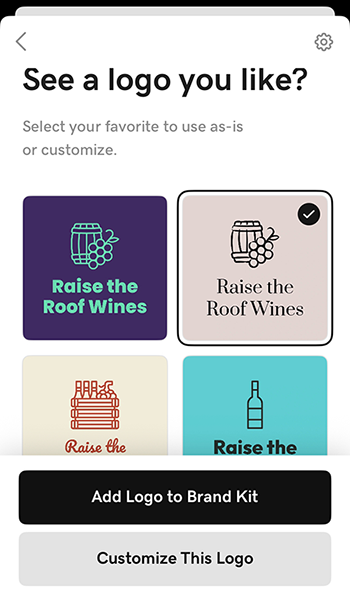
- To use the logo as is and add it to your Brand Kit, tap Add Logo to Brand Kit. You can then easily access it from any Content Creator design.
- To make changes, tap Customize This Logo, tap the logo, and from the banner that appears, tap Edit. From here you can edit your logo as you would any other Content Creator project. For more details, check out the articles on working with color, working with fonts and working with layers.
- When you're done, export your logo as a .jpg or .png so that you can use it on your socials, website and marketing materials.
- Sign in to your Content Creator app.
- Under Quick Actions, tap Logo Generator.
- In the form that appears, enter your business name. This name will appear on your logo.
- Enter your business industry. This will help the AI generate a picture that best represents your brand.
- Tap Next.
- From the options that appear, choose 1-3 words that describe your business personality. This will help the AI choose fonts and colors that match your style.
- Tap Next.
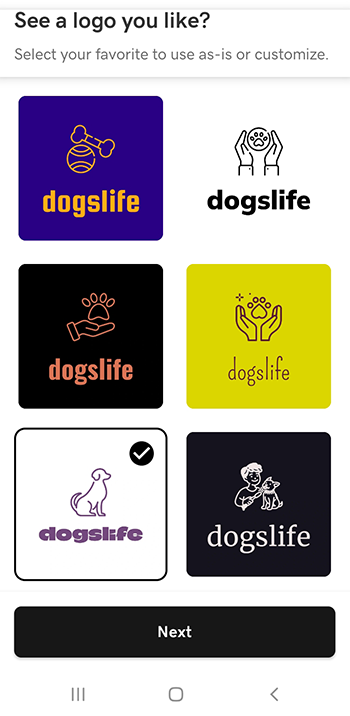
- Our AI engine will use your business information and the information you’ve provided to generate 12 different logos. These will display in the Content Creator canvas.
- Tap a logo that best matches what you're looking for, and then tap Next.
- You can use your logo as is or edit it as you would any other Content Creator project. For more details, check out the articles on working with color, working with fonts and working with layers.
- When you're done, export your logo as a .jpg or .png so that you can use it on your socials, website and marketing materials.
- Sign in to your Content Creator account.
- Under Try popular features, select Logo Generator.
- In the form that appears, enter your business name. This name will appear on your logo.
- Enter your business industry. This will help the AI generate a picture that best represents your brand.
- Add a description for your business. This gives the AI more clues about the nature of your business.
- Select Continue.
- Select 1-3 words that describe your business personality. This will help the AI choose fonts and colors that match your style.
- Select Generate.
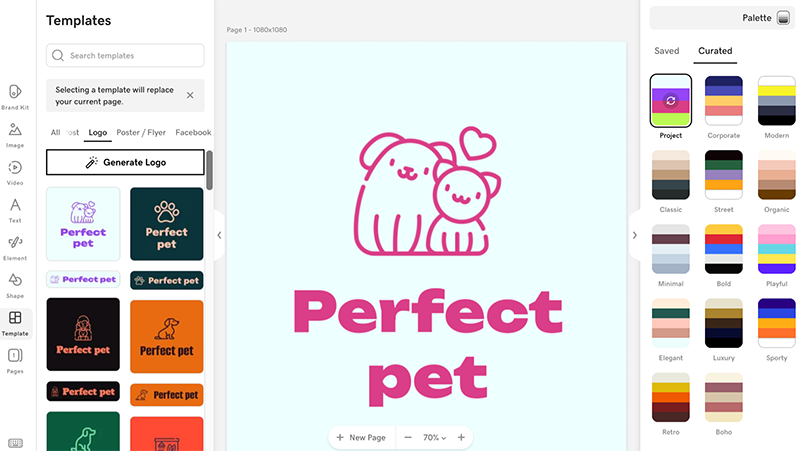
- Our AI engine will use the information you’ve provided to generate 12 different logos and give you 2 variations of each logo—a larger vertical version and a smaller horizontal version. These will display in the Content Creator canvas. From here you can:
- Change the color combination by selecting a different color palette from the right menu. To see all the color combinations available in one palette, select it repeatedly.
- Edit your logo as you would any other Studio project. For more details, check out the articles on working with color, working with fonts and working with layers.
- Export your logo as a .jpg or .png so that you can use it on your socials, website and marketing materials.
- Select Generate Logo on the left to restart the process and generate a new set of logos.
Related step
- If you're have a Websites + Marketing plan, you may want to add your logo to your website header.
More info
- Add to your brand assets with an instant video generated by AI
- For tips on making your logo stand out, read our blog post on how to make a logo
- If you prefer to skip the AI, you can use a template to design a unique logo