Set up Vacation Responder for out-of-office auto-replies
Whether you’re on vacation or simply unavailable, use the Vacation Responder to send an automatic reply to incoming email.
Select a tab based on whether you’re using webmail on desktop or the Titan app on mobile.
- webmail にサインインします。 Professional Email powered by Titanアドレスとパスワードを使用してください(GoDaddyのユーザー名とパスワードはここでは使用できません)。
- In the upper-right corner, select
 Settings, and then Preferences.
 - On the leftmost side, under SEND & REPLY, select Vacation Responder.
- Turn on the Enable Vacation Responder toggle.
- Select the date that you want the Vacation Responder to start, and then whether you want to leave it on indefinitely or select an end date.
- Enter a subject and message.
- Select how often you want to reply to consecutive email from the same sender (from 1 to 7 days).
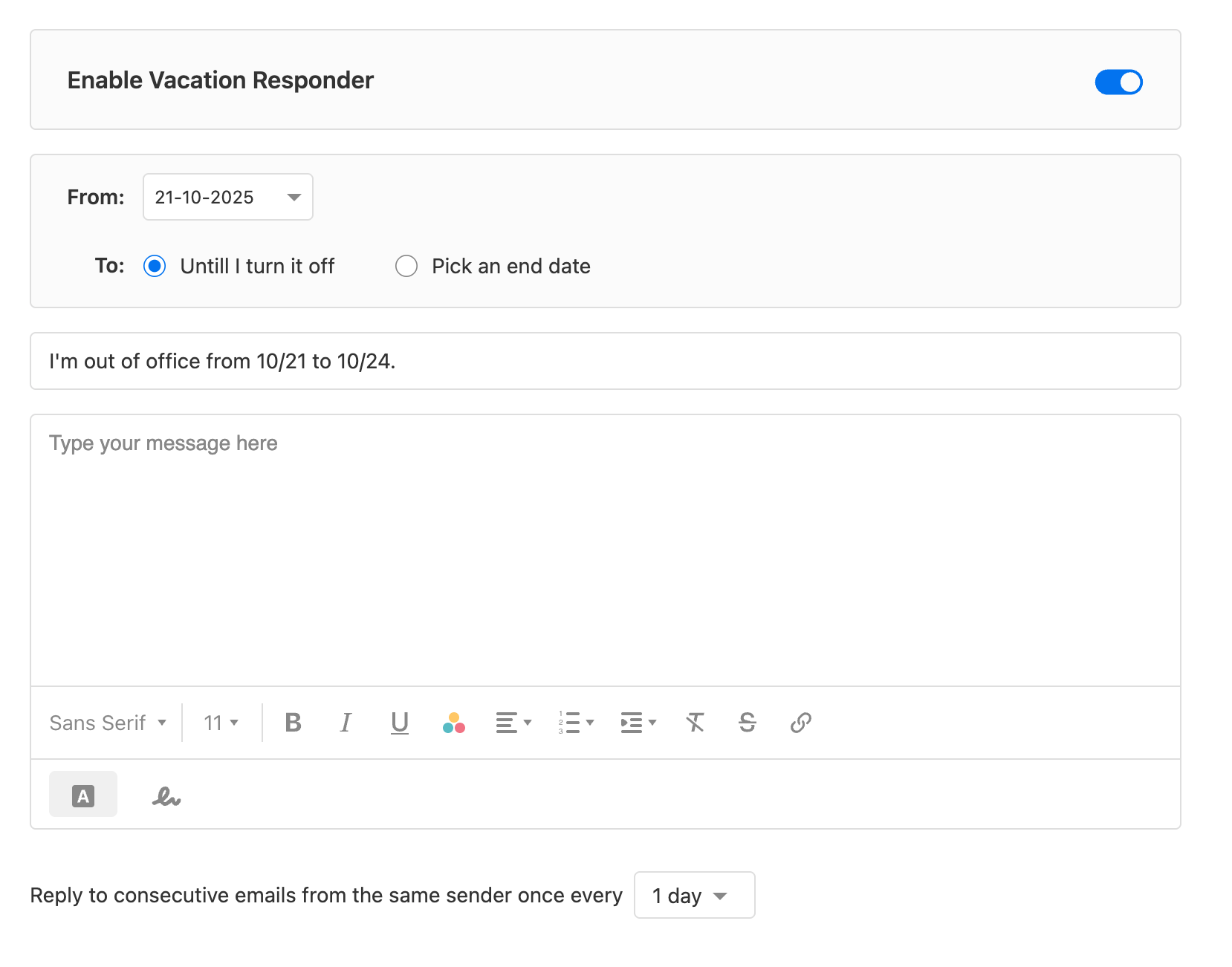
- 保存を選択してください。
- Open the Titan app.
- In the upper-right corner, tap the
 menu or swipe left.
 - Scroll down, and then tap Settings.
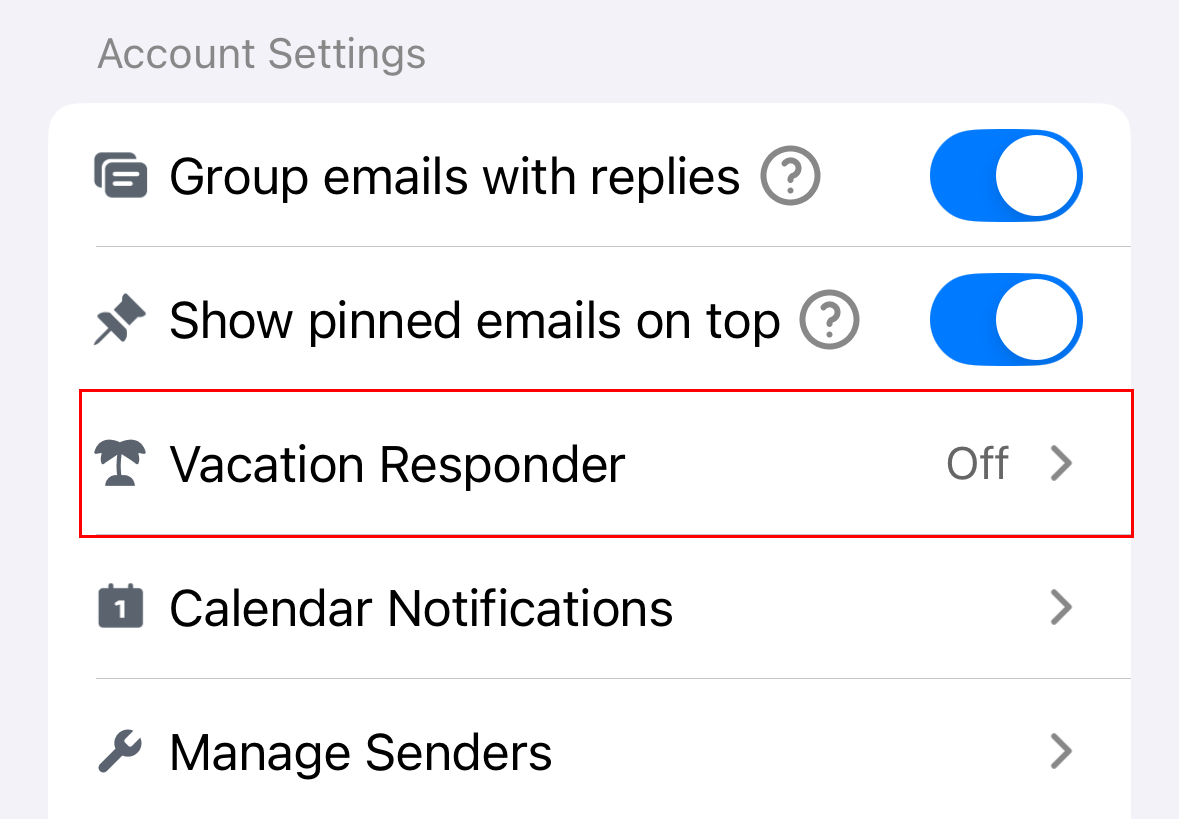
- Under Account Settings, tap Vacation Responder.
- Turn on the Enable Vacation Responder toggle.
- Tap the date that you want the Vacation Responder to start, and then whether you want to leave it on indefinitely or select an end date.
- Enter a subject and message.
- Choose how often you want to reply to consecutive email from the same sender (from 1 to 7 days).
- Choose whether you want to see a reminder in your inbox when the Vacation Responder is on.
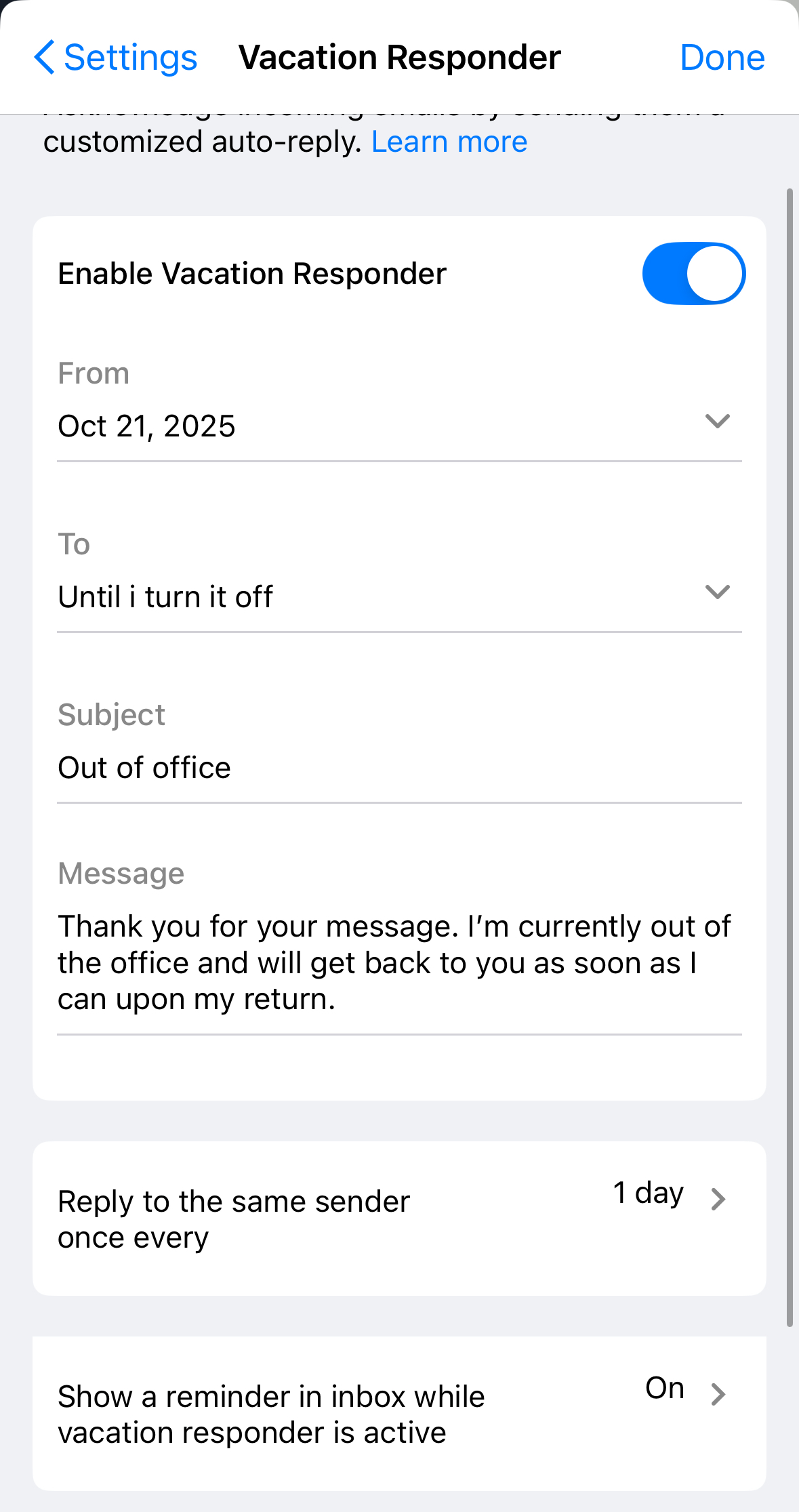
- In the upper-right corner, tap Done.